
CATEYE PADRONE SMART +
Pairing a sensor or a Shimano DI2 system with the Cateye Cycling™ app

Switching to Sensor Direct Mode
Pairing a smart computer with a sensor
Pair a sensor that you want to use with smart computer.
Important
• Pairing (sensor ID synchronization) must be performed in order to use a sensor.
• Do not pair sensors at a race venue or in similar locations where there are a lot of other users. Doing so may cause the smart computer to be paired with another device.
• Pair all sensors and similar devices that you intend to connect.
• Pairing a Shimano DI2 system must be performed using a smartphone.
• When paired with or connected to the Cateye Cycling™ app and there is pairing information stored in Cateye Cycling™, the information in the smart computer is replaced by the Cateye Cycling™ pairing information. When a sensor is added, perform pairing with Cateye Cycling™.
 Pairing a sensor or a Shimano DI2 system with the Cateye Cycling™ app
1. From the measurement screen, press OPTION for 2 seconds to switch to the sensor pairing screen.
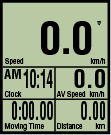

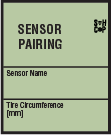 (2 seconds)Sensor pairing screenMeasurement screen
* When the sensor pairing screen is left on for 1 minute, the smart computer returns to the measurement screen.
2. Press SS/LAP to start pairing.

3. Activate the sensor that you want to pair.
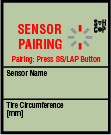
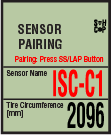 Sensor activated
 Synchronization completeReady for synchronization
The name of the synchronized sensor is displayed and pairing is completed.
• SP : Speed sensor
• ISC : Speed/cadence sensor
• CD : Cadence sensor
• HR : Heart rate sensor
• PW : Power sensor
* For the CATEYE sensor signal activation procedure, refer to the sensor’s online manual.
* When pairing a sensor with a smart computer, a "C" is displayed after the sensor name.
Important
When the smart computer displays [ID FULL] on the screen and returns to the sensor pairing screen, the maximum number of sensors have been paired.
Up to 9 separate sensor IDs can be paired with the smart computer.
If the maximum number of sensors have been paired, press OPTION in the sensor pairing screen for 4 seconds to clear all pairings. Then performing pairing again with the necessary sensors.
* Pairing standby time is 5 minutes. Activate the sensor within this time.
* If you want to pair another sensor, repeat steps 2 and 3.
4. Press OPTION to return to the measurement screen.

Pairing is now complete.
If you have paired a sensor capable of speed measurement, proceed with setting the tire circumference.
Tire circumference setting