
CATEYE PADRONE SMART +
Device
Configuring Incoming Notifications

Notifications of incoming calls and emails to your smartphone, and the smartphone remaining battery state can be sent to the smart computer.
Important
• Cateye Cycling™ notification settings are applied to the applications that have notifications enabled on the smartphone.
• Email notifications valid only with the email addresses registered with [Add Account].
* Adding an iCloud email address
Adding an iCloud email address requires the creation of an app-specific password.
1. Follow the steps under “Using app-specific passwords” to create a password.
2. In Cateye Cycling™, tap [Notification Setting] > [Add Account], and choose [iCloud]. Enter the iCloud email address in the email field and an app-specific password in the password field.
This completes the procedure for adding an iCloud email address.
• When an incoming notification is received, the display will not show the app name or the name of the sender.
Smartphone
Tap  (Other) > [Device] > [PADRONE SMART+], and then follow the procedure below.
1. Tap [Notification Setting].
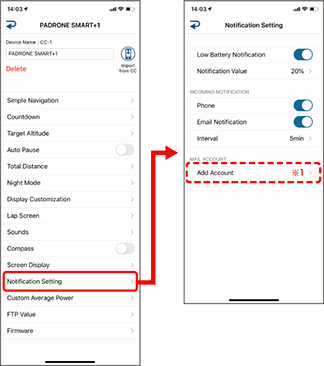
• Low Battery Notification
When the smartphone battery reaches a specified amount,  (remaining smartphone battery) flashes on the smart computer.
• Phone / Email:
When a notification arrives, [Phone] or [Mail] flashes on the smart computer’s screen, with an audible alarm. After the notification closes,  /
/  (incoming call/email notification icon) will flash.
*1: It is necessary to configure email account settings to receive incoming notification.
* The incoming notification icons and count cannot be displayed when screen customization is set to display 8 screen segments.
* The incoming notification icons and count displays are reset when measurement is paused, reset, or finished.